Tuesday, November 6, 2012

How to enable mail notification alerts on iPhone

Its easy to enable notification alert for the mails configured on your iPhone.
To enable email alert notifications on your iPhone or iPad follow the below steps:

1) Go to Settings > Notifications:

2) Select Mail :

 
3) Select the mail you want notifications for:

4) Set Notification Center to ON + Select the Alert Style

Wednesday, October 17, 2012

How to sync iPhone Calendar with Google Calendar

It is a common issue with iOS device (iPhone/iPad/iPod) users, that your iPhone calender doesn't get synced with your Google Calendar. All your entries in the google calendar would be reflected on your iPhone but the vice versa doesn't work.
You can follow the below mentioned steps to resolve this issue. Its all about a little configurations on your iPhone.

1.  On iPhone go to :  Settings->Mail, Contacts, Calendars->(scroll down to calendars)->Default Calendar->select Gmail calendar.

2.  Now go back to your main page on iPhone and select Calendar.

3.  Select "LIST" view of your events/dates/appointments.

4.  Notice that each event has a colored bullet to the left.  This indicates which calendar it belongs to (in my case orange bullets were for Outlook and Green for Google). 

5.  What I found was that the events NOT showing up on my google calendar were actually somehow default created in Outlook.  So to quickly change them over (and get them to show up on your Google Cal in both your laptop and iPhone)---do the following:

a.  Select an item from the list that you want to show up on your Google Calendar.  Open that item.
b. Edit the item.
c.  Scroll down to where you see "CALENDAR"
d.  Select CALENDAR and then place a check next to your google calendar.

You have just moved this item back to google.  Since google is now your 'default calendar (see step 1 up above), it should from here on out make all your apptmts in Google Calendar. 

Now it works....

Next step to manually sync you can follow the below steps:

to manually sync things up and check to make sure this worked you need to do two things:

1.  On iPhone:  Open Calendar and then hit "CALENDAR" on upper left.  In bottom left hand side of screen is a circle with an arrow...hit that.  It seems to send whatever you just did...out to Google Calendars.

2.  On laptop...open your Google Calendar---on top right there is a button that says "MORE"---hit that and scroll down to "REFRESH"...that will sync the calendar w/ your iPhone. 

Tuesday, October 2, 2012

How to Delete a calendar on iPhone?

Follow the below steps to  remove calanders on your iPhone / iPad / iPod devices.

Goto Settings -> Mail -> Contacts and Calendars.
Select the account you want to delete and then touch the "Delete" button.
The same steps can be repeated for each of the calendars you want to remove.

How to delete search history on an iPhone or iPad?

Follow the below steps to clear the sear history on your iPhone or iPad or iPod devices.

Open up Safari Web Browser by touching the Safari icon on your iPhone, iPad or iPod.
Tap the book icon at the bottom of the screen to open Safari's bookmark links.
Tap the "History" link that appears at the top of the screen, and then touch the "Clear" button to erase your phone's history.
Press the home button to return to the home screen.
Touch the Settings icon and then tap Safari.
Scroll down and touch "Clear Cache."

Now all your history are cleared from your iOS Device.

Does iphone internet have parental controls?

The first version of iphone running iOS did not have an Internet parental control feature.
Beginning with iOS 3.0 of the iPhone, however, you can access Internet parental controls by selecting "Settings" -> "General" -> "Restrictions."
Enter a four digit passcode.
On the next screen, select the items you wish to disable on the device.

How to close a Web page in iPhone Safari?

Open the iPhone's Safari browser. Press the "Pages" button in the bottom-left corner of the screen. This brings up a screen with each of your open web pages.

Close the Page
Tap the "x" in the upper-left corner of the Web page. This closes the Web page. Repeat the process if you have more than one Web page you want to close.

The same steps work on iPhone, iPad as well as iPods.

Sunday, September 23, 2012

iPhone4 doesn't have Panorama with iOS6

Bad news for iPhone 4 users...

iPhone4 doesn't have panorama option. Only iPhone5 and iPhone4S supports Panorama option in iPhone Camera. Check out the list of features iOS6 supports.

Maps: Flyover
Maps: Turn-by-turn144
Siri2
Facebook integration
Shared Photo Streams
Passbook
Camera: Panorama
Camera: Snap stills while recording✓ 
FaceTime over cellular3
Phone: Reply/Remind
Do Not Disturb
Mail VIPs
Safari: Full screen view ✓
Safari: Offline reading list
Guided Access
Made for iPhone hearing aids
Notes:
  1. Cellular data charges may apply.
  2. Siri requires Internet access. Siri may not be available in all languages or all areas, and features may vary by area. Cellular data charges may apply.
  3. Carrier data charges may apply. FaceTime is not available in all countries.
  4. Turn-by-turn navigation is available only with iPad models with cellular data capability.


http://support.apple.com/kb/HT5457

Monday, September 10, 2012

How to see battery percentage on iPhone / iPad / iPod

Its sometimes very useful to know the exact remaining battery percentage on your iPhone and iPad or iPod. It helps you better manage your phone usage to preserve the battery and plan better. The battery symbol helps to get an idea about the remaining power storage in your phone, but its difficult to judge the exact remaining power from the battery graph. This is when the percentage count comes handy.  Also the best part of this is that it is part of iOS and not any third party app.

To enable this option:
Settings > General > Usage >Battery Usage.
Here turn on the battery Percentage option.


This option can be used to enable ( turn on ) / disable ( turn off ) the remaining battery percentage on your iPhone or iPad.

How to create folder in iPad / iPhone / iOS

Its very simple yet very useful option to create a folder on your iOS device including an iPad or an iPhone. This is also applicable on your new iPod.
Step 1: Tap and hold any app (application) icon on your iPhone or iPad for 2-3 seconds. By this time all the icons starts to jiggle/wiggle.
Step 2: Tap an icon, hold, drag it onto another app icon and release. Both the apps get grouped into a folder.
Step 3: By default a name is given to this folder depending on the category of the containing apps. You can change the folder name as well.

Tuesday, August 28, 2012

Best iPhone / iPad / iPod Music Player Alternatives

The iPod Music player that comes along with iPhone and iPad is a great music player. But at times we feel that it lacks many features that we would have wanted in a music player. Some examples that come to my mind are fetching the information about the track and tracking our habits on listening to music. The good thing is there are many alternatives to the iPod music player in the iTunes App Store. Here in this article we will go though some of the most useful and feature rich music app.

Panamp
Panamp is a fast, robust music player application for iPhone and iPod touch that lets you create dynamic “Queues” of your favorite tracks on the go. Find related information about your tracks as you browse through your music library, which is organized in a simple tree view. Responsive and intelligent, Panamp gives you an unprecedented level of control that puts your iOS device at the very center of your musical life. You can download Panamp from the below link: Panamp on iTunes.

 iAlbums
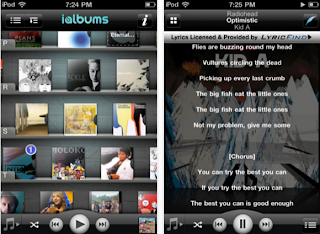
iAlbums lets you experience the story behind your favorite music with bios, reviews, lyrics, photos, videos, interviews and so much more.
There’s a whole world of information just waiting to be revealed behind every music file on your player. iAlbums brings you this world, with a fun and exciting music experience that includes bios, album reviews, tweets, videos, cover versions, photos, and much more.
All of the content is delivered in one seamless flow, all about what you're listening to right now. Whether you’re a Rihanna fan, a Korn fanatic, digging Eminem, a Pink Floyd rocker, a Bjork listener, or anything else in between, let iAlbums introduce you to the musical experience you've been missing. iAlbums can be dowloaded from iTunes.

Music Stats
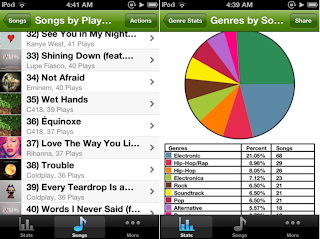
Music Stats is an app that let’s you view stats and details about your iOS music collection and your music listening habits, a must have for any music fan!
Features:
● Sort your songs, albums, or playlists by play count, length, genre, and more
● Detailed stats about each of your songs
● General stats, Fun stats, Averages, and more
● Your listening habits such as most listened to song, genre, or artist, and time spent listening
● Facebook and Email sharing
● Graphs of your Genres and Artists
● Customize the app with Theme Colors
● Play songs from directly within the app
● Auto-play, a feature that automatically picks and plays songs based on a chosen certain criteria (e.g. play songs that you have listened to most or play songs that you have never listened to)
● Favorites, allows you to keep a list of favorite songs

TapTunes
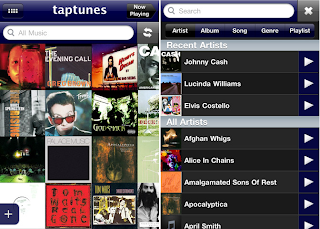
TapTunes is THE advanced music player for the iPhone and iPod Touch. With TapTunes, you will experience your music collection like never before. Touch, tap, drag, pinch, shake, swipe -- you've never been this close to your tunes!
Features:
* BROWSE your music through four unique displays, including all-new STACKED mode
* CONTROL playback through intuitive GESTURES
* SHARE what you're listening to via FACEBOOK and TWITTER
* SEARCH for what you want to listen to, now featuring QUICK PLAY
* SHUFFLE songs or even albums
* CUSTOMIZE your experience through an assortment of settings

XD Music Player
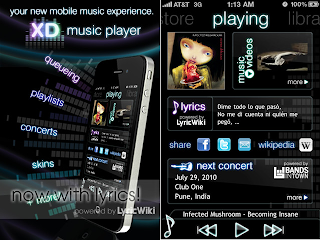
XD Music Player is your new mobile music experience, bringing queueing, playlists, skins, lyrics, concerts, and wikipedia to your fingertips.
• Browse for music within XD, and easily add (or remove) any song, album, artist, genre, podcast, or even audiobook to your "current queue" - and your music never stops! Close the app, and your queue will continue playing.
• If you like your queue, save it as a playlist! You can easily edit and reorder the songs in your playlists anytime.
• Access the lyrics, tour schedule, wikipedia page, and music videos for the artist your listening to right from within XD. Our "now playing" page updates automatically as the song you're listening to changes.
• Find concerts through our recommendation engine, XD Oracle™, or search and filter through them using advanced search.
• XD currently comes with 6 skins - "Liquid Glass", "Blue Steel", "Molly", "Urban Ash", "Zen", and "Black Gold" - with more to come later!
• Share a concert you found or song you're listening to via facebook, twitter, or email right within XD! You can also have XD automatically update your facebook or twitter status to the current song you're listening to.

DJ Mixer
Mix unlimited amount of tracks from your music library on iPad, iPhone and iPod Touch.
Mix, scratch, loop, filter, throw sound effects, record and rock any party with anywhere, anytime.
HOT! Brand new tracks from Marty Party and Hyper Crush, plus hundreds of free music to mix via the free Bander music discovery App.
Also includes free tracks featuring the dancefloor smash hit Vegas by Vandalism & Static Revenger, and additional tracks from The Crystal Method, Bassnectar, Photek, DJ Rap, Kool Keith, Elzhi, and Veze Skante.
No need for expensive and complicated DJ mixing hardware and software.

iPhone iPad 4G support in UAE

Apple iPhone 5 would support 4G network. This is a sure factor as new version of iPad 2 already supports 4G Networks. 4G would be 10 times faster than 3G network (around 150mbps speed). In UAE du and Etisalat already suppors 4G network. It was of great disappointment that iPhone4S did not support 4G to the disappointment of iPhone 4S buyers.

In terms of network technology especially mobile technology, UAE is comparable to international standards. New iPad supports 4G LTE (Long Term Evolution) on 700 MHz spectrum. But the new iPhone 5 is supposed to support 4G LTE on 1800 MHz.

The Dubai based du which is a new entrant to the market when compared to Etisalat which is the pioneer in the field in the region are in good competition in satisfying the customers and rising to international standards in mobile communication technology.


Tuesday, February 28, 2012

DoubleTwist | Free iTunes alternative / iPod Manager review

It's sometimes a mess working with iTunes. Especially with its sync option, its difficult to maintain the library on multiple machines. Surprisingly the alternatives available for iTunes are also functionally rich softwares. And moreover many of them are free softwares. I reviewed some of the applications and would discuss about the ones that I found was the best as an iTunes alternative / iPod Manager. In this post I would like to focus on an application called DoubleTwist which has some unique features to mention.

DoubleTwist
DoubleTwist is another very good piece of software for those who dont like to mess up with apple iTunes. It supports many devices including iOS(iphone/ipad/ipod) and Android ones. One great use of the applications is to find new music and podcasts. Another very cool feature of DoubleTwist is that is supports AirSync. You can download DoubleTwist app from Android market for free and you can sync your music library without physically connection your device to your pc/mac with wires. DoubleTwist is available for both windows and mac.

Follow the link for DoubleTwist : http://doubletwist.com/

Check these for more alternatives for iTunes
http://apple-ipad-iphone-ipod.blogspot.com/2012/02/free-top-best-itunes-alternative-ipod.html
TransCopyManager
Songbird
Sharepod

Songbird | Free iTunes alternative / iPod Manager review

It's sometimes a mess working with iTunes. Especially with its sync option, its difficult to maintain the library on multiple machines. Surprisingly the alternatives available for iTunes are also functionally rich softwares. And moreover many of them are free softwares. I reviewed some of the applications and would discuss about the ones that I found was the best as an iTunes alternative / iPod Manager. In this post I would like to focus on an application called Songbird which has some unique features to mention.
Songbird (Android devices)
This comes second in my list as an iTunes alternative. But lately its been noticed what Songbird is not supporting any iOS devices like iPhone/iPod/iPad. But it supports many other devices especially Android devices. This is a very feature rich applications, especially with its add on facilty. It also supports many media file formats. Also it supports both audio and video files. Another advantage of Songbird is that it works on both pc and mac. So go for it if you have an android device and not an apple iphone/ipad/ipod. There is an android app for SongBird in Android Market.
Follow the link for SongBird : http://getsongbird.com/

Check these for more alternatives for iTunes
http://apple-ipad-iphone-ipod.blogspot.com/2012/02/free-top-best-itunes-alternative-ipod.html
TransCopyManager
DoubleTwist
Sharepod

SharePod | Free iTunes alternative / iPod Manager review

It's sometimes a mess working with iTunes. Especially with its sync option, its difficult to maintain the library on multiple machines. Surprisingly the alternatives available for iTunes are also functionally rich softwares. And moreover many of them are free softwares. I reviewed some of the applications and would discuss about the ones that I found was the best as an iTunes alternative / iPod Manager. In this post I would like to focus on an application called Songbird which has some unique features to mention.
SharePod
It is a nice little software for the purpose, but is kind of obselete now, because it does'nt support the new iOS devices including iPhone4 and iPad2. Otherwise it would have been a great software because it enables 2 great features. First it lets you install the application onto your iPod so that you can plug it into any machine and use SharePod. But it required iTunes to be installed on the machine to work with iPhone and iPod touch. A second cool feature of the application is that it permits you to transfer your ipod device content to your pc.

Check these for more alternatives for iTunes
http://apple-ipad-iphone-ipod.blogspot.com/2012/02/free-top-best-itunes-alternative-ipod.html
TransCopyManager
Songbird
DoubleTwist

CopyTrans Manager | Free iTunes alternative / iPod Manager review

CopyTrans Manager

This would come as my first choice when looking out for a free iTunes alternative / iPad manager. The best thing about this little software is it does what it is supposed to do quiet neatly. You can start using this piece of software without much help documentation in no time. May be the basic listings resemble iTunes, the interface is quiet easy. And the commin options we would look out in this software is easily visible and accessible. It supports all versions of iPhone/iPod/iPad including the latest iOS5. It is compatible with your PC running on Windows XP, Vista and Windows 7. Like iTunes you can play music and video from CopyTrans Manager. You can also organize your EBooks and Apps using CopyTrans manager. The applications is available for download as an installable file as well as as zip file with only the executable file.

The main disadvantage of this software is that it does not permit you to copy music/ebooks/podcasts from your iPhone/iPad/iPod to your computer. But this is possible with an extended version for the software which is CopyTrans 4 which is part of CopyTrans Suite which is free to try. It can repopulate your iTunes Library from your iPod to your PC. Eventhough great as a utility, the interface is a little dull but can't complaint about it.
Follow the link for CopyTrans Manager : http://www.copytrans.net/copytransmanager.php


Check these for more alternatives for iTunes
http://apple-ipad-iphone-ipod.blogspot.com/2012/02/free-top-best-itunes-alternative-ipod.html
TransCopyManager
Songbird
DoubleTwist
Sharepod

Free Top Best iTunes alternative / iPod Manager review

It's sometimes a mess working with iTunes. Especially with its sync option, its difficult to maintain the library on multiple machines. Surprisingly the alternatives available for iTunes are also functionally rich softwares. And moreover many of them are free softwares. I reviewed some of the applications and would discuss about the ones that I found was the best as an iTunes alternative / iPod Manager.

CopyTrans Manager

This would come as my first choice when looking out for a free iTunes alternative / iPad manager. The best thing about this little software is it does what it is supposed to do quiet neatly. You can start using this piece of software without much help documentation in no time. May be the basic listings resemble iTunes, the interface is quiet easy. And the commin options we would look out in this software is easily visible and accessible. It supports all versions of iPhone/iPod/iPad including the latest iOS5. It is compatible with your PC running on Windows XP, Vista and Windows 7. Like iTunes you can play music and video from CopyTrans Manager. You can also organize your EBooks and Apps using CopyTrans manager. The applications is available for download as an installable file as well as as zip file with only the executable file.

The main disadvantage of this software is that it does not permit you to copy music/ebooks/podcasts from your iPhone/iPad/iPod to your computer. But this is possible with an extended version for the software which is CopyTrans 4 which is part of CopyTrans Suite which is free to try. It can repopulate your iTunes Library from your iPod to your PC. Eventhough great as a utility, the interface is a little dull but can't complaint about it.

Follow the link for CopyTrans Manager : http://www.copytrans.net/copytransmanager.php

Songbird (Android devices)

This comes second in my list as an iTunes alternative. But lately its been noticed what Songbird is not supporting any iOS devices like iPhone/iPod/iPad. But it supports many other devices especially Android devices. This is a very feature rich applications, especially with its add on facilty. It also supports many media file formats. Also it supports both audio and video files. Another advantage of Songbird is that it works on both pc and mac. So go for it if you have an android device and not an apple iphone/ipad/ipod. There is an android app for SongBird in Android Market.

Follow the link for SongBird : http://getsongbird.com/

DoubleTwist

DoubleTwist is another very good piece of software for those who dont like to mess up with apple iTunes. It supports many devices including iOS(iphone/ipad/ipod) and Android ones. One great use of the applications is to find new music and podcasts. Another very cool feature of DoubleTwist is that is supports AirSync. You can download DoubleTwist app from Android market for free and you can sync your music library without physically connection your device to your pc/mac with wires. DoubleTwist is available for both windows and mac.
Follow the link for DoubleTwist : http://doubletwist.com/


SharePod

It is a nice little software for the purpose, but is kind of obselete now, because it does'nt support the new iOS devices including iPhone4 and iPad2. Otherwise it would have been a great software because it enables 2 great features. First it lets you install the application onto your iPod so that you can plug it into any machine and use SharePod. But it required iTunes to be installed on the machine to work with iPhone and iPod touch. A second cool feature of the application is that it permits you to transfer your ipod device content to your pc.

These are some of the best and most useful softwares which can be used as alternatives to ITunes. There are some more useful softwares in this category. Some of them are Amarok, Banshee,Floola,gtkpod,MediaMonkey,Rhythmbox,Winamp,YamiPod. I will review them later.

Thursday, February 23, 2012

iPad 2 does not charge from most windows and old Mac Laptop


iPad 2 has a very weird behavior that it doesn't get charged when connected to most of the laptops.
It requires a new Mac machine to get properly charged. Or else you need to have the wall adapter shipped with iPad2. Even an iPhone wall charger is slower in charging iPad2.

The issue here is iPad2 requires more power to charge, which new Mac laptops and Mac OS is optimized for.
You can have the trick on Windows based PCs with some USB drivers and to date something that works is an ASUS driver that works on Asus motherboard based laptops and also some other laptops, mostly dell laptops may be because dell uses Asus internally for its motherboard. But some people has reported issues with their machine after installing this driver. Its a mess uninstalling this driver which might mess us usb drives and some registry tweaks is required to fix it.

Actually PC can recharge iPad, but iPad has to be in the sleep mode, but then too the charging is slow.
The normal USB are 500mA, which the iPad2 wall charger is 2Amp.

Some good experiences are shared on this apple discussion forum.

The ASUS driver link is: http://event.asus.com/mb/2010/ai_charger/
But make sure to make a backup and restore from it in case something goes wrong.

How to charge iPad faster


Internally all apple products use lithium-polymer battery. In iPad 2's case, the battery is even larger with 25 watt hour battery, making it more power hunger from the power source, but allows you to surf, listen to music or watch movies for 10 hours.

10W AC Adaptor
The best option to charge an iPad faster is the 10W AC Power adapter which charges iPad 2 from the wall power socket. This is the fastest and most efficient charging mechanism for iPad especially iPad2, as iPad2 is more recharge power hungry because of its larger battery.

USB Port
All USB ports doesn't charge iPad 2. Most Windows based PCs and old Mac's doesn't charge iPad 2, because of its higher power source requirements. Check this post for more details and how to enable usb to charge iPad.
On your laptop, some usb ports are exclusively powered and some shared, so try and find the best usb that gives more power for your iPad.
Some laptops like Mac Book Air which can power external disc drive gives more power output making it more suitable for iPad charging.

Car Adapter charger
Its is most convenient charging option if you are going out and travelling in car. But when you grab the car charger from your electonic store make sure to check its compatibility with iPad2.

Battery Packs
Battery packs are becoming more common now a days with more smart phones and tablets. But for your iPad requirements, make sure to get a battery pack which is iPad compatible. Many of the battery packs supports multiple devices which is very good. Also many of them support multiple power sources to recharge.

Cycle the battery
This rule is not only applicable for your iPad, but also for all your mobile devices running on battery power. The procedure is to completely drain your battery to 0 till it automatically goes to shut down mode. Then at a stretch recharge it to 100%. Do this atleast once a month for better life of your battery.

ipad 2 not charging when connected to laptop - windows pc / mac


Its very strange that my new iPad 2 is not charging when connected to my windows 7 laptop.
I tried switching to my different laptops, one dell xps of my wife with windows vista, one with acer windows 7 ultimate, one with HP Pavilion with windows 7 home premium and finally with my Samsung running on windows vista. None helped and the only option left out to me was plug it to the wall socket with the adapter that came along with the iPad 2 pack.

I searched online much and it seemed to be a frequent and common issue. The underlying issue is with the power requirements of iPad 2. Apple to improve the per recharge usage life of iPad 2 came up with a larger battery and naturally it needs more power. Either it can use the same power source and take longer to charge or use a powerful recharge source and charge it up faster. Apple went for the latter and thus resulting in a requirement for a powerful charger.

Normally any usb drives gives 500mA power. But seems to settle the hunger of iPad 2 it requires 2 A, which is not fulfilled by most of the usb ports. But Apple having had this design plans, already has optimized its new versions of laptops and OS to support a higher power output via usb ports. This helps for instance MAC Book Air to power up the extended optical drive. For normal PCs, there should be an external power source for these extended drives.

There is  a tweak for this. Its by installing some patches for usb drivers so that, it tries to output more power to the usb drives. These patches are more kind of mother board specific but some a more generic. Below are some links to these patches which you can install. After a reboot, your usb ports should be powerful enough to charge your iPad 2.

But because these patches can affect your hardware drivers which in turn affect the working of your softwares, its safe to take make a checkpoint to which you can roll back once you have any issue.

Below are the download links:

http://event.asus.com/mb/2010/AI_Charger/(ASUS) *Recommented
http://www.msi.com/index.php?news_no=1013&func=newsdesc (MSI)
http://www.gigabyte.com/microsite/185/on-off-charge.htm (GIGABYTE)
http://www.asrock.com/feature/AppCharger/index.asp(ASROCK)

Monday, February 13, 2012

iPhone / iPod / iPad Screen Shot (Capture)


Many a times we want to capture (Screen Shot) the iPhone / iPod / iPad screen, similar to the way we do a "Print Screen" on our computer. You can use this to capture and share some display on your device or send reference to some error messages displayed on your screen or even to share a high score displayed on your screen. ;) iOS provides a very efficient way for this. the screen capture is very clear and vivid.

When you have the screen to capture on your device, hold your home button for a second. While still holding the home button press the power/sleep/wake button on your device to capture the screen. Your iPhone / iPod / iPad will give a camera shutter like sound and a white flash on your screen representing a successful screen capture.

To view the captured screen go to, "Photos" app -> "Camera Roll" and your last screen capture must be there as the latest picture there.

Note: The power button on iPhone is on the top side of your iPhone towards the right side. It is the same Sleep/Wake button on iPad. The home button is the round button on the front (towards the bottom of the screen) of your iPhone / iPod /iPad.